Windows 8.1: Show Desktop Instead of Start Screen on First Boot
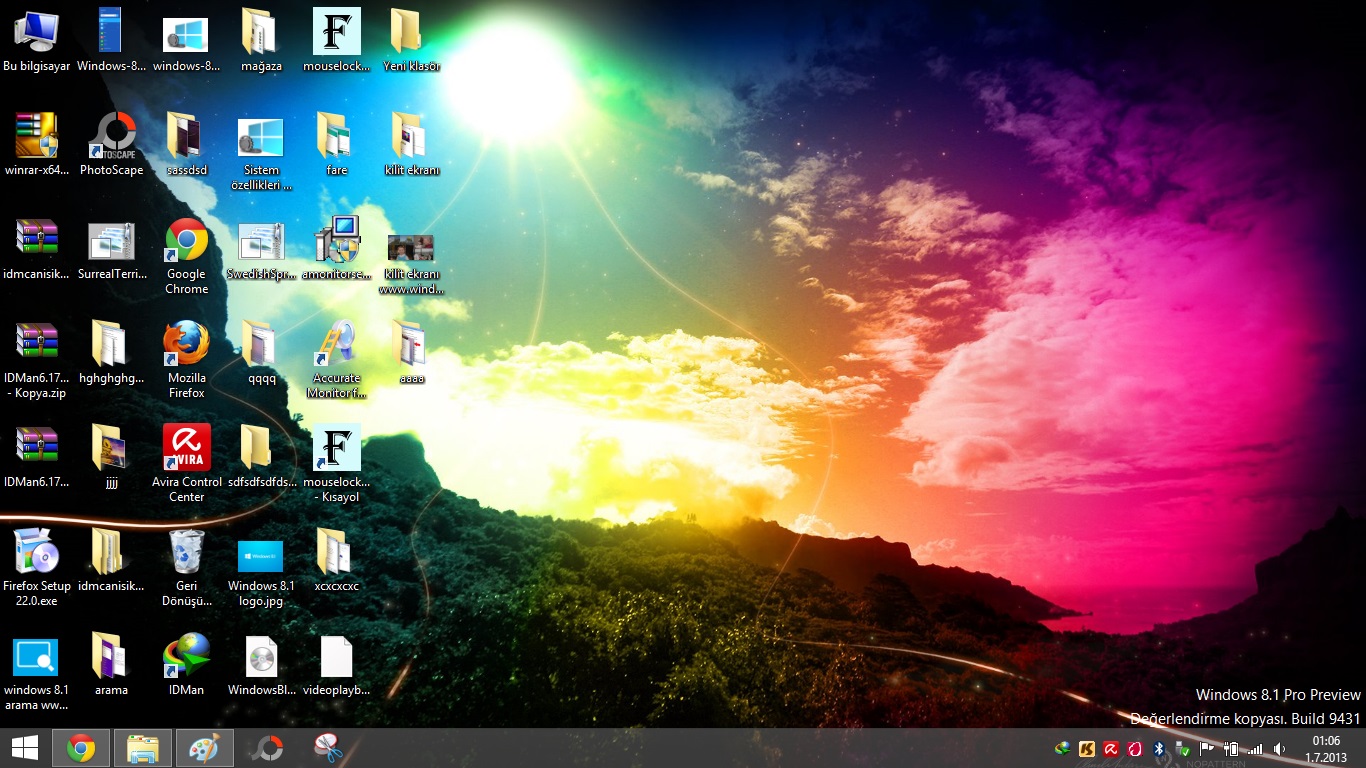
In Windows 8 and Windows 8.1, when the computer starts, the Start screen appears instead of the desktop. We used to mess with the registry (Regedit) to cancel this. Now there’s no need for that. In Windows 8.1, there is now an option to change this.
This option, added in Windows 8.1, is a change made in response to user requests.
Now let’s see how to do this.
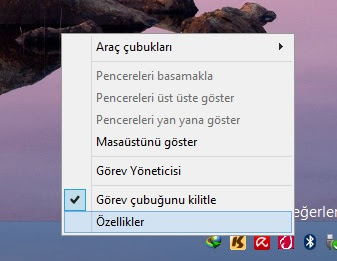
If you want the desktop to be displayed instead of the Start screen when the system starts, right-click an empty area on the taskbar and go to “Properties“.
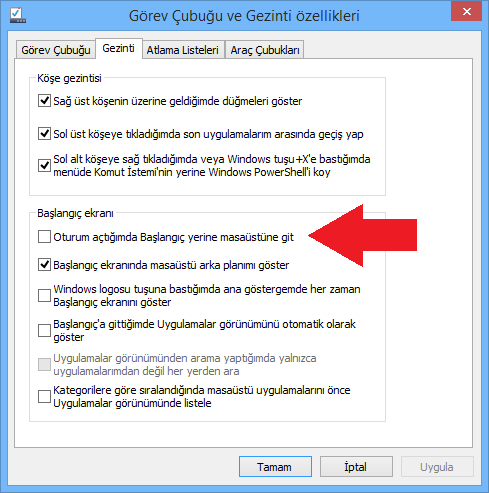
In the Navigation tab, under the Start screen settings section, check the “Go to the desktop instead of the Start screen when I sign in” option. That’s all. If you want, you can reverse this setting at any time.


Share your experience
Got a question, a different solution or a note to add?
Log in or join us to write a comment.
Log in ↗︎Sign up ↗︎